

Zoom and Pilotiko: scheduled meetings, checked and cleanly cancelled
Zoom doesn't hold a calendar in Pilotiko: it supplies the virtual room, your calendar supplies the time.
The Zoom connection is designed to create a scheduled meeting in the right slot, with a waiting room and invitees, then update or cancel it as needed. It requests the meeting:write and meeting:read scopes. Status: Available.
Try 30 days freeAll integrations
30 days free, no credit card.
In short
- Scopes: meeting:write and meeting:read, nothing else.
- Type 2 (scheduled) meetings, waiting room on, invitees added.
- Reading cloud transcripts is coded; the connection only asks for meeting scopes.
- Zoom's app-removal notice isn't handled yet.
How it works
- 1
Create your account
Your name, your email and a password. No credit card.
- 2
Answer a few questions
Pilotiko reads what is public about your business and only asks you for the rest.
- 3
Your office is ready
Your departments, tasks and dials, set up for your trade. Invite your team whenever you like.
A department for every part of your business
Leadership
Your whole business on one screen: red, orange, green, you know where to look.
Example: the late quote shows up in red.
Assistant and AI agents
They prepare the work from your real data; you approve.
Example: a customer follow-up drafted, ready to send in one click.
Appointments and schedules
Slots, assignments and the team calendar in one place.
Example: the technician free on Thursday is suggested for you.
Marketing
Your posts and editorial calendar prepared for you.
Example: this week's post, ready to approve.
Website and visibility
Get found on Google and by AI assistants.
Example: your service pages kept up to date with your real prices.
Reports and numbers
Your monthly numbers without a spreadsheet.
Example: this week's revenue compared with last week.
Phone reception
An AI receptionist that answers and offers an appointment.
Example: the 7 p.m. call becomes a confirmed appointment.
Learn more
6 sections · 5 min read
What does the Zoom connection do?
It creates, finds, updates and deletes Zoom meetings for the connected account. Pilotiko picks the time from your calendar and business hours; Zoom provides the join link.
Once a meeting is approved, Pilotiko asks Zoom for a type 2 meeting, which Zoom calls a "Scheduled meeting" [2], with the topic, start time, length in minutes and time zone. Invitee addresses are passed along and the waiting room is switched on, so nobody gets in until the host admits them.
If Zoom doesn't return both a meeting ID and a join link, Pilotiko counts the creation as failed. Before recreating a meeting after a dropped connection, it scans the account's upcoming meetings for one with the same title and start time, so you don't end up with two.
When a booking moves, the meeting is updated (topic, time, length); when it's cancelled, the meeting is deleted on Zoom. A meeting that's already gone on Zoom's side isn't treated as an error.
- meeting:write: create, update and delete the connected account's meetings.
- meeting:read: read a meeting back to confirm it exists at the right time.
- Read from Zoom: upcoming and past meetings and, when policy allows, the file list of a cloud recording.
- Written to Zoom: the scheduled meetings Pilotiko sets up and their invitees.
- Needs a person: scheduling a meeting that sends invitations to a customer.
How do you connect Zoom to Pilotiko?
- 1
Open the Zoom card
Under Connections, video conferencing, pick Zoom. If it reads "To be enabled by Pilotiko", Pilotiko's Zoom app isn't offered on your account yet.
- 2
Sign in at Zoom
Zoom opens its authorization screen; sign in with the account that will host meetings [1].
- 3
Grant both scopes
Zoom lists creating and reading meetings. Pilotiko uses PKCE with the S256 method, which Zoom supports [1].
- 4
Make Zoom your default
In meeting settings, pick Zoom if you use it more than Teams or Google Meet.
- 5
Book a trial meeting
Schedule a 15-minute internal meeting, approve it, then check the time, length and waiting room in Zoom.
What is live or coming soon with Zoom?
| Feature | Status | Detail |
|---|---|---|
| Create a scheduled meeting (type 2) | Available | Waiting room and invitees. |
| Update or cancel the meeting | Available | Follows changes to the booking. |
| Avoid duplicates after a dropout | Available | Looks for a meeting with the same title and time. |
| Cloud transcript (VTT) | Available | Reads cloud recordings; the connection only asks for meeting scopes. |
| Handling Zoom's app-removal notice | Coming soon | Required by Zoom; not built yet. |
| Zoom webinars | Coming soon | Not built. |
How many Zoom meetings would a small team handle in a week?
What Zoom data does Pilotiko keep, and how do you cut access?
Pilotiko keeps the meeting ID, its link and its times. Zoom tokens are encrypted at rest (AES-256-GCM). When a transcript file is downloaded, the token is only ever sent to the Zoom API address or a zoom.us subdomain over HTTPS, never to an arbitrary address found in a response.
A transcript is fetched only when a policy allows it, and never without attendees knowing. Quebec law requires telling people why information is collected and that they can withdraw consent [4], so let your guests know at the start of the meeting.
To cut access: Connections → Zoom → Disconnect in Pilotiko; tokens are erased and the action is logged. You can also remove the app from your Zoom account. Zoom documents that it then sends a deauthorization notice and that the app must delete that user's data [1]. Pilotiko doesn't process that notice automatically yet.
What are the Zoom integration's limits?
- No calendar at Zoom: the time comes from Pilotiko's own calendar, Outlook or Google. See Google Calendar and Outlook / Microsoft 365.
- Cloud recordings sit in Zoom's recordings endpoints [2]; the connection only asks for meeting scopes.
- Zoom has renamed its older scopes "classic scopes" and offers newer ones [3].
- For a Microsoft 365 shop, Teams saves an extra account.
Frequently asked questions
Can Pilotiko start or record a Zoom meeting?
No. Pilotiko creates the scheduled meeting and, if you allow it, can read a transcript Zoom has already produced. It doesn't start the meeting or the recording.
Why is the waiting room on?
So nobody gets in ahead of the host, even with the link. It's a cautious default for meetings with customers or candidates.
What happens when a customer reschedules?
Pilotiko updates the existing Zoom meeting (time, length, topic) rather than creating a new one. The join link stays the one Zoom issued.
Do I need a paid Zoom plan?
Pilotiko doesn't require one to create scheduled meetings. Cloud transcripts depend on what your Zoom plan includes, so check with Zoom.
Does the Zoom integration work today?
It creates, updates and cancels scheduled Zoom meetings. Handling Zoom's required removal notice is not built yet.
Zoom or Teams in Pilotiko?
Go with the one your customers already know. Teams runs through your Microsoft 365 connection; Zoom needs its own. Pilotiko follows the choice saved in your settings.
Sources
- Zoom Developer, OAuth for user-level apps (accessed on October 15, 2026).
- Zoom Developer, Zoom Meetings API (accessed on October 15, 2026).
- Zoom Developer, OAuth scopes (accessed on October 15, 2026).
- LégisQuébec, Act respecting the protection of personal information in the private sector (CQLR, c. P-39.1) (accessed on October 15, 2026).
- RFC Editor (IETF), RFC 7636 : Proof Key for Code Exchange by OAuth Public Clients (accessed on October 15, 2026).
Read next
- Pilotiko integrationsGoogle Calendar, Outlook, Zoom, Stripe, LinkedIn, Cloudflare, Twilio and more: what each Pilotiko connection does today, with its status read from the code.
- Microsoft Teams and Pilotiko: a checked meeting link, and transcripts only with your say-soTeams links created with your Outlook bookings, transcripts read after the meeting only if you allow it: what Pilotiko does, what's missing, its status.
- Connecting Google Calendar to PilotikoWhat the Google Calendar connection really does in Pilotiko: the calendar.events scope, busy times, invitations, its current status and how to revoke access.
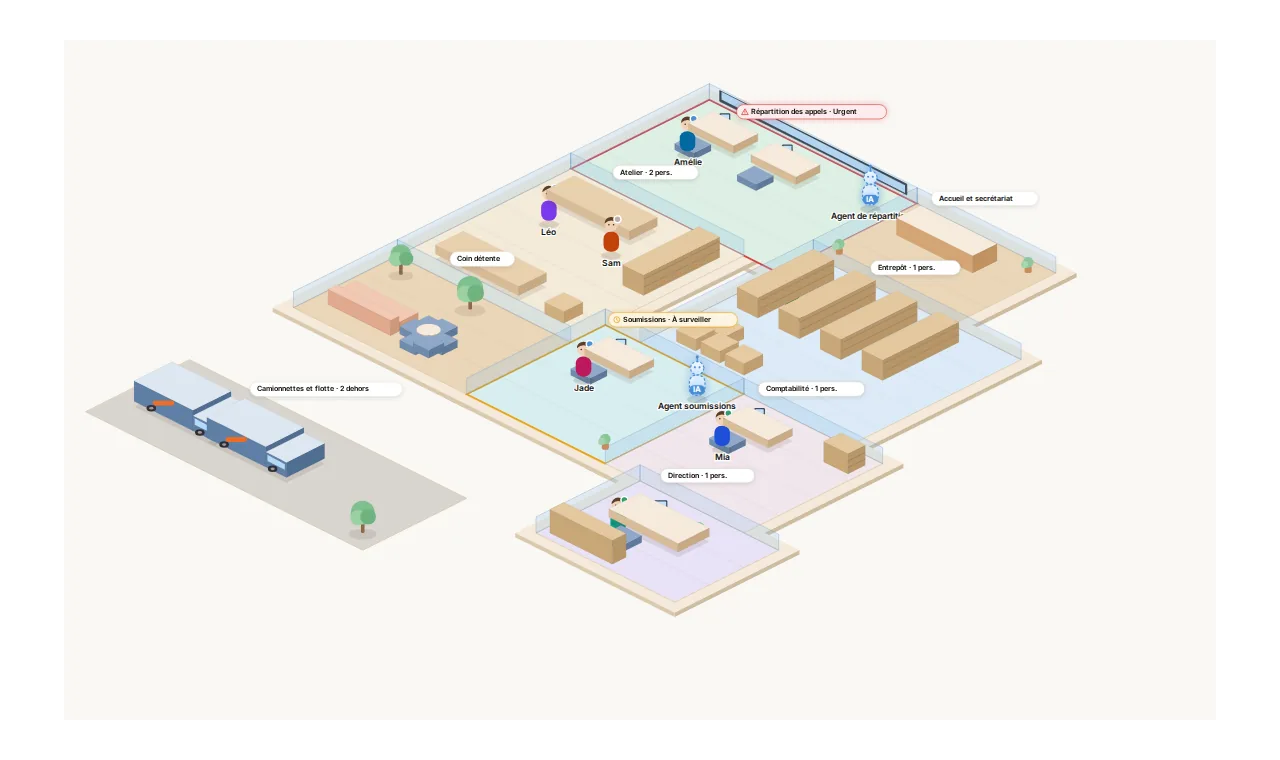
Your whole business, on one screen.
Each department is a room. Pilotiko prepares the work; you approve with one click.
- Call answered
- Appointment confirmed
- Email reply ready
- Invoice prepared