

Outlook and Microsoft 365 with Pilotiko: your busy times and your outgoing mail
One Microsoft connection: your mailbox read and sorted, your calendar for open slots, and sending what you approve.
The business Outlook / Microsoft 365 connection reads your email, your contacts, your calendar and, on Microsoft 365, your Teams chats; it puts bookings on your calendar and sends approved messages from your mailbox. Each employee can link their own calendar. Status: Available.
Try 30 days freeAll integrations
30 days free, no credit card.
In short
- Business connection: about thirty delegated permissions on Microsoft 365 (including Mail.Read, Mail.ReadWrite, Mail.Send, Calendars.ReadWrite, Contacts.Read, Chat.Read), 16 for a personal Outlook.com account. You're asked which type of account you have.
- Employee connection: their calendar (Calendars.ReadWrite, User.Read, offline_access), to see their appointments and add Pilotiko's bookings; sending email from their address (Mail.Send) is separate.
- Co-workers only ever see "busy"; a private event's title is never shown.
How it works
- 1
Create your account
Your name, your email and a password. No credit card.
- 2
Answer a few questions
Pilotiko reads what is public about your business and only asks you for the rest.
- 3
Your office is ready
Your departments, tasks and dials, set up for your trade. Invite your team whenever you like.
A department for every part of your business
Leadership
Your whole business on one screen: red, orange, green, you know where to look.
Example: the late quote shows up in red.
Assistant and AI agents
They prepare the work from your real data; you approve.
Example: a customer follow-up drafted, ready to send in one click.
Appointments and schedules
Slots, assignments and the team calendar in one place.
Example: the technician free on Thursday is suggested for you.
Marketing
Your posts and editorial calendar prepared for you.
Example: this week's post, ready to approve.
Website and visibility
Get found on Google and by AI assistants.
Example: your service pages kept up to date with your real prices.
Reports and numbers
Your monthly numbers without a spreadsheet.
Example: this week's revenue compared with last week.
Phone reception
An AI receptionist that answers and offers an appointment.
Example: the 7 p.m. call becomes a confirmed appointment.
Learn more
6 sections · 7 min read
What does the Outlook / Microsoft 365 connection do?
It goes through Microsoft Graph for four things: reading your mailbox, contacts and calendar, creating or changing an event, and sending an approved email from your address. The times Pilotiko offers customers then reflect your actual Outlook calendar.
For the calendar, the connector queries the calendar view over a date range and keeps only blocks shown as busy, out of office or tentative, skipping cancelled events. That's what stops Pilotiko from offering a customer a time that's already taken in Outlook.
To write, it creates the event through Graph's events API [3] with attendees, a UTC start and end, and a description. It can later update or cancel it; an event that's already gone on Microsoft's side isn't treated as an error.
For the mailbox, it reads email from every folder: first the last 24 months, then each new message. Emails are kept in your business's memory and analyzed automatically (rules first, then an AI model) to sort requests and prepare replies. It doesn't move or delete any email.
To send, it calls the sendMail action [2]. Microsoft answers "202 Accepted", and its documentation is explicit that this means the request was accepted, not that processing has finished [2]. Pilotiko records the email as accepted, not delivered. By default, sendMail saves the message to Sent Items [2].
- Calendars.ReadWrite: create, read, update and delete events in the user's calendars; as a delegated permission, Microsoft lists it as not requiring admin consent [1].
- Mail.Read and Mail.ReadWrite: read your email. Mail.ReadWrite is requested, but Pilotiko doesn't change, move or delete any message.
- Contacts.Read, Chat.Read and the other Microsoft 365 permissions: read your contacts and your Teams chats.
- Mail.Send: the least-privileged permission sendMail accepts [2].
- User.Read identifies the connected account; offline_access lets Pilotiko renew access without asking you to sign in again.
- Needs a person's approval: a meeting that sends invitations to a customer must be approved, and Pilotiko writes to Outlook only on an explicit action, never as a side effect of syncing.
How do you connect Outlook or Microsoft 365 to Pilotiko?
- 1
Sort out who connects what
A manager links the business mailbox and calendar once. Each employee can then link their own calendar on their own.
- 2
Start the business connection
In Connections, on the Outlook / Microsoft 365 card, select Connect. Microsoft's sign-in opens with a single-use code that's valid for 10 minutes.
- 3
Approve the permissions
Microsoft shows the list: reading email, contacts and calendar, writing to the calendar, sending mail, Teams chats, your profile and offline access. Approve with the business account.
- 4
Link employee calendars
Each person links their calendar (read and write), so Pilotiko can see when they're busy and add the appointments it books for them.
- 5
Test with a real block
Block an hour in Outlook, then open Pilotiko's booking page: that hour should no longer be offered.
What is live or coming soon with Microsoft?
| Feature | Status | Detail |
|---|---|---|
| Reading busy times | Available | Calendar view over the requested range. |
| Create, update, cancel events | Available | Writes only on an explicit action. |
| Incremental sync of an employee calendar | Available | Delta queries, change subscriptions and periodic reconciliation, so a lost notice doesn't break anything. |
| Confirmations through sendMail | Available | Sent from your mailbox, after approval. |
| Teams meeting attached to an event | Available | See the Microsoft Teams integration. |
| Reading the inbox | Available | Mail.Read, sorted by the AI secretary, replies prepared for approval. |
Online booking and open-slot calculation are available in Pilotiko without Outlook. The connection adds your Outlook commitments to that calculation.
What would Pilotiko see in an Outlook calendar over a week?
What happens to your Microsoft data, and how do you revoke access?
Microsoft tokens are encrypted at rest (AES-256-GCM), refreshed under a lock so two renewals can't collide, and never displayed. If authorization is revoked or expires, the connection flips to "reconnect" rather than failing quietly.
Quebec law requires telling people the purposes of collection, the means used and their right to withdraw consent, and consent must be given for specific purposes [4]. The purposes are written here and on Microsoft's screen: reading to sort and prepare your work, writing to the calendar, and sending what you approve.
To revoke: Connections → Outlook / Microsoft 365 → Disconnect. Tokens are erased and the action is logged. What has already been read stays in your business's memory; to erase it, make a request. Then remove Pilotiko from your Microsoft account's app permissions, or ask your Microsoft 365 administrator to. Your rights: your rights.
What are the Outlook integration's limits?
- Times go to Microsoft in UTC; Outlook shows them in each person's time zone.
- After sendMail, Pilotiko can't look up an interrupted send, so a message whose response was lost stays "uncertain" instead of being resent blindly.
- Pilotiko renews its Graph change subscriptions roughly every 70 hours and reconciles calendars on a schedule in case a notice goes missing.
- Online meetings and transcripts belong to the Microsoft Teams integration. For a Google calendar, see Google Calendar; to send through Google, see Gmail.
Frequently asked questions
Does Pilotiko read my Outlook email?
Yes, if you link the business mailbox: the connection requests Mail.Read (and Mail.ReadWrite) to sort your email and prepare replies. Pilotiko doesn't move or delete any message. An employee's sending connection only asks for Mail.Send.
Will co-workers see the details of my personal appointments?
No. By default other members see only "busy". An event marked private in Outlook never reveals its title in Pilotiko.
Do I need my Microsoft 365 admin's approval?
By default, Pilotiko only asks for delegated permissions that don't need an administrator; for Calendars.ReadWrite, for example, Microsoft's permissions reference lists admin consent as not required. If your organization has its own app-approval rules, follow them before linking Pilotiko.
Can Pilotiko move my Outlook appointments on its own?
No. It writes to Outlook only when a person takes an explicit action, never in reaction to a sync. A meeting that sends invitations to a customer needs approval.
What does the connection do once linked?
It reads the mailbox, calendar and contacts, puts bookings on the calendar and sends from your mailbox the messages a person has approved.
Will a personal Outlook.com account work?
Microsoft documents Mail.Send as accepted for personal Microsoft accounts on sendMail. Teams transcripts, however, aren't supported for personal accounts.
Sources
- Microsoft Learn, Microsoft Graph permissions reference (accessed on October 15, 2026).
- Microsoft Learn, user: sendMail (Microsoft Graph v1.0) (accessed on October 15, 2026).
- Microsoft Learn, Create event (Microsoft Graph v1.0) (accessed on October 15, 2026).
- LégisQuébec, Act respecting the protection of personal information in the private sector (CQLR, c. P-39.1) (accessed on October 15, 2026).
Read next
- Pilotiko integrationsGoogle Calendar, Outlook, Zoom, Stripe, LinkedIn, Cloudflare, Twilio and more: what each Pilotiko connection does today, with its status read from the code.
- Microsoft Teams and Pilotiko: a checked meeting link, and transcripts only with your say-soTeams links created with your Outlook bookings, transcripts read after the meeting only if you allow it: what Pilotiko does, what's missing, its status.
- Connecting Google Calendar to PilotikoWhat the Google Calendar connection really does in Pilotiko: the calendar.events scope, busy times, invitations, its current status and how to revoke access.
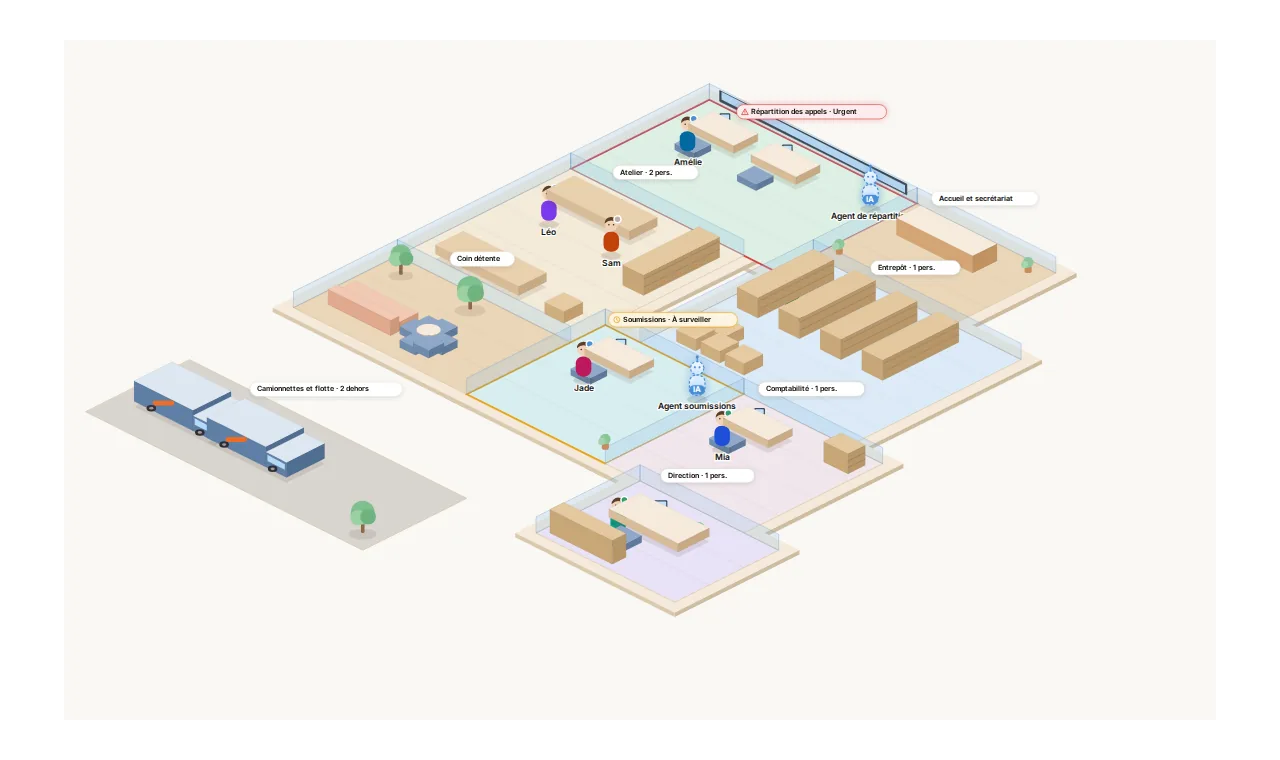
Your whole business, on one screen.
Each department is a room. Pilotiko prepares the work; you approve with one click.
- Call answered
- Appointment confirmed
- Email reply ready
- Invoice prepared