
Connecting Google Calendar to Pilotiko
A straight answer: what the connection does and what is still to come.
Today, Pilotiko runs your bookings and open slots from its own scheduler, with no Google account needed. The Google Calendar connector reads your events (times, titles, attendees), works out your busy times from them, keeps them in your business's memory and creates events. Status: Available.
Try 30 days freeAll integrations
30 days free, no credit card.
In short
- Pilotiko's own scheduler already works on its own: online booking, real open slots and suggested assignment.
- The Google connection asks for the calendar.events scope, plus openid and email to show which account is linked.
- A meeting that sends invitations always waits for a person's approval.
How it works
- 1
Create your account
Your name, your email and a password. No credit card.
- 2
Answer a few questions
Pilotiko reads what is public about your business and only asks you for the rest.
- 3
Your office is ready
Your departments, tasks and dials, set up for your trade. Invite your team whenever you like.
A department for every part of your business
Leadership
Your whole business on one screen: red, orange, green, you know where to look.
Example: the late quote shows up in red.
Assistant and AI agents
They prepare the work from your real data; you approve.
Example: a customer follow-up drafted, ready to send in one click.
Appointments and schedules
Slots, assignments and the team calendar in one place.
Example: the technician free on Thursday is suggested for you.
Marketing
Your posts and editorial calendar prepared for you.
Example: this week's post, ready to approve.
Website and visibility
Get found on Google and by AI assistants.
Example: your service pages kept up to date with your real prices.
Reports and numbers
Your monthly numbers without a spreadsheet.
Example: this week's revenue compared with last week.
Phone reception
An AI receptionist that answers and offers an appointment.
Example: the 7 p.m. call becomes a confirmed appointment.
Learn more
6 sections · 7 min read
What does the Google Calendar connection do?
Two jobs: knowing when you are already booked, and putting meetings planned in Pilotiko into your Google calendar, with a Google Meet link when one is needed.
Pilotiko already has a scheduler of its own. It works out open slots from your team's hours and the appointments it knows about. But plenty of people live in Google Calendar: a client lunch, a dental appointment, a training day. Linking the two keeps Pilotiko from offering a customer a time when the person is away, and saves you from entering the same meeting twice.
To do that, Pilotiko asks Google for three permissions. The main one, calendar.events, is described by Google as "View and edit events on all your calendars" [1]. The other two, openid and email, only identify which account is connected. This connection does not ask for Gmail or Drive; sending email goes through the Gmail connection, which is separate.
For busy times, the connector reads your list of events (events.list), which the calendar.events scope covers; it does not call the freeBusy method, which would need a different scope [2]. An event that is cancelled, marked "free" or declined does not block a slot.
The events it reads (time, title, description, location, attendees) also go into your business's memory, so the assistant knows who you met and when.
- Read from Google: your list of calendars, and busy periods (start and end only) over a given range.
- Written to Google: an event with a title, description, time, attendees and, on request, a Google Meet conference; later changes or a cancellation.
- Invitations: Pilotiko asks Google to notify attendees (sendUpdates=all) when it creates, moves or cancels a meeting.
- Approval: scheduling a meeting that sends invitations requires a person's approval. The assistant suggests; you decide.
- Checks: every step (meeting, event, invitation) is read back; if one fails, what was already created is undone.
How do I connect Google Calendar to Pilotiko?
- 1
Open the Connections page
In Pilotiko, go to Connections and find the Google Calendar card. If Pilotiko has not switched this provider on for your account yet, the card says so instead of showing a button that leads nowhere.
- 2
Pick the Google account
Click Connect. You are sent to Google, where you choose the account that holds the business calendar or your own.
- 3
Read the consent screen
Google lists what is requested: see and edit events on your calendars, plus your address and identity. Nothing else.
- 4
Approve and come back
Once you agree, Google sends you back to Pilotiko with a one-time code. Pilotiko swaps it for tokens and encrypts them straight away.
- 5
Check the status
The card switches to Connected. If a token renewal fails, it switches to Reconnect needed, never to a silent failure.
What is available or coming soon?
| Feature | Status | Detail |
|---|---|---|
| Online booking and open slots from Pilotiko's scheduler | Available | Works without Google, from your team's hours. |
| "Add to my calendar" .ics file for the customer | Available | iCalendar format that Google, Apple and Outlook can open. |
| Reading busy times in Google Calendar | Available | Events read with calendar.events. |
| Creating, moving and cancelling events with invitations | Available | Each step is re-read; if one fails, what was created is undone. |
| Google Meet link on a meeting | Available | Requested from Google when the event is created. |
| Google Meet transcripts | Coming soon | Nothing is built yet. |
| Each employee's personal calendar | Available | calendar.events, from My connections. |
Statuses come from Pilotiko's capability registry, where Google Calendar is listed as an adapter.
What would a week of synced bookings look like?
How is your Google data protected?
The tokens Google hands over are encrypted at rest (AES-256-GCM) and never leave the server; your browser never sees them. The connection link carries a one-time "state" value tied to your business and to your user, which expires after 10 minutes. The authorization code is also protected with PKCE, the IETF standard designed to stop an intercepted code from being reused [4].
Pilotiko reads your events (time, title, description, location, attendees) for your availability and for your business's memory; they are visible only to the people in your business who have access to it. Quebec's private-sector privacy act, as amended by Law 25, requires telling people why information is collected and that they may withdraw consent (s. 8), and consent given for specific purposes (s. 14) [3]. Google's screen and Pilotiko's card are there for exactly that: saying what the access is for before you grant it. More on the Security page and in the privacy policy.
Removing access works on both sides. In Pilotiko, Disconnect erases the tokens, erases from memory the events read from Google (except facts a person in your business has confirmed) and records the action in the audit log. In your Google Account, open the linked third-party apps page, pick Pilotiko and remove its access; after that, the app can no longer reach your account.
What are the limits today?
- Bookings made by your customers live in Pilotiko's scheduler first; copying them to Google automatically is not switched on yet.
- Google Meet transcripts are not built. For meeting summaries, see Zoom and Microsoft Teams.
- If your business runs on Microsoft 365, the Outlook / Microsoft 365 page covers the equivalent; every connection is listed in the integrations index.
Frequently asked questions
Do I need Google Calendar to take bookings with Pilotiko?
No. Online booking and open-slot calculation work with Pilotiko's scheduler alone. Google Calendar adds your other commitments to the picture, once the connector is linked.
Can Pilotiko read what my events are about?
Yes, once the calendar is linked: Pilotiko reads the time, title, description, location and attendees of your events, for your availability and for your business's memory. Google's screen shows this before you agree (calendar.events: see and edit events).
Will my customers get a Google invitation?
When a meeting is created in your Google calendar, Pilotiko asks Google to notify attendees. That step waits for a person's approval.
Does Pilotiko add a Google Meet link?
Yes, when the meeting is a video call and Google Meet is the chosen tool, Pilotiko requests one as the event is created.
How do I cut off Pilotiko's access to my calendar?
Click Disconnect on Pilotiko's Connections page and the tokens are erased. Also remove the access from the third-party apps section of your Google Account so the permission is cancelled at Google too.
What about Apple Calendar or an iCal link?
Pilotiko does not connect to iCloud or subscribe to an iCal feed. It only gives your customers an "Add to my calendar" .ics file after a booking, which Apple, Google and Outlook can all open.
Sources
- Google for Developers, Choose Google Calendar API scopes (accessed on October 15, 2026).
- Google for Developers, Freebusy: query (Google Calendar API) (accessed on October 15, 2026).
- LégisQuébec, Act respecting the protection of personal information in the private sector (CQLR, c. P-39.1) (accessed on October 15, 2026).
- RFC Editor (IETF), RFC 7636 : Proof Key for Code Exchange by OAuth Public Clients (accessed on October 15, 2026).
Read next
- Pilotiko integrationsGoogle Calendar, Outlook, Zoom, Stripe, LinkedIn, Cloudflare, Twilio and more: what each Pilotiko connection does today, with its status read from the code.
- Outlook and Microsoft 365 with Pilotiko: your busy times and your outgoing mailHow Pilotiko connects to Outlook and Microsoft 365: Graph permissions requested, busy-time reading, sendMail, per-employee consent, real status and revoking.
- Zoom and Pilotiko: scheduled meetings, checked and cleanly cancelledCreate, update and cancel Zoom meetings from Pilotiko with a waiting room: scopes requested, transcripts, what's still missing and the real status today.
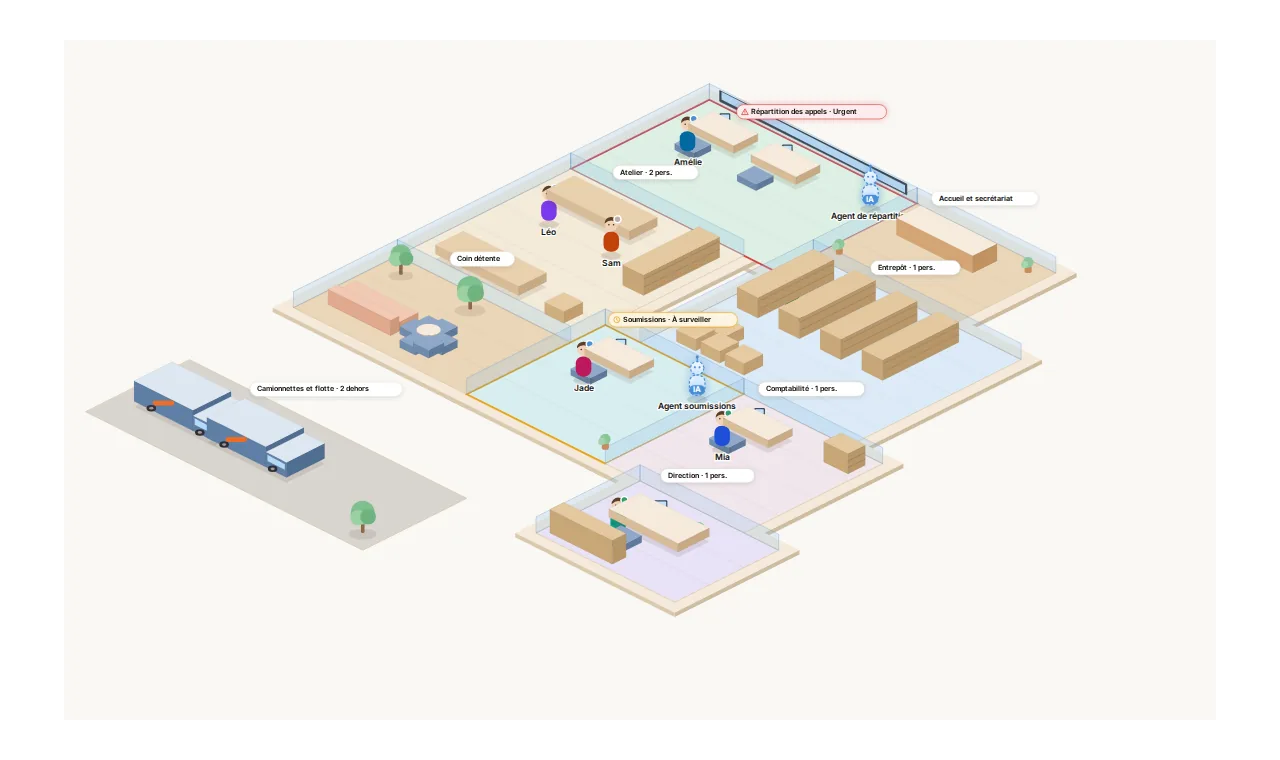
Your whole business, on one screen.
Each department is a room. Pilotiko prepares the work; you approve with one click.
- Call answered
- Appointment confirmed
- Email reply ready
- Invoice prepared