

Microsoft Teams and Pilotiko: a checked meeting link, and transcripts only with your say-so
Teams runs through your Outlook / Microsoft 365 connection, so there's no second account to link.
With Teams, Pilotiko is designed to create the online meeting together with the Outlook event, confirm the join link exists and, if you allow it, read the transcript after the meeting. Status: Available.
Try 30 days freeAll integrations
30 days free, no credit card.
In short
- The Teams link is created with the Outlook event; no link means the step failed and gets rolled back.
- Transcripts need Microsoft's OnlineMeetingTranscript.Read.All permission, which the connection doesn't request yet.
- Personal Microsoft accounts: no transcripts, per Microsoft.
- Any meeting that sends invitations to a customer waits for a person's approval.
How it works
- 1
Create your account
Your name, your email and a password. No credit card.
- 2
Answer a few questions
Pilotiko reads what is public about your business and only asks you for the rest.
- 3
Your office is ready
Your departments, tasks and dials, set up for your trade. Invite your team whenever you like.
A department for every part of your business
Leadership
Your whole business on one screen: red, orange, green, you know where to look.
Example: the late quote shows up in red.
Assistant and AI agents
They prepare the work from your real data; you approve.
Example: a customer follow-up drafted, ready to send in one click.
Appointments and schedules
Slots, assignments and the team calendar in one place.
Example: the technician free on Thursday is suggested for you.
Marketing
Your posts and editorial calendar prepared for you.
Example: this week's post, ready to approve.
Website and visibility
Get found on Google and by AI assistants.
Example: your service pages kept up to date with your real prices.
Reports and numbers
Your monthly numbers without a spreadsheet.
Example: this week's revenue compared with last week.
Phone reception
An AI receptionist that answers and offers an appointment.
Example: the 7 p.m. call becomes a confirmed appointment.
Learn more
6 sections · 5 min read
What does the Microsoft Teams integration do?
It turns a Microsoft calendar event into a Teams meeting and retrieves the join link. After the meeting, a separate module can read the transcript to pull out decisions, action items and facts worth keeping, provided you've authorized it.
Microsoft lets you make an Outlook event an online meeting by setting isOnlineMeeting to true and picking an online meeting provider the calendar supports [1]. Pilotiko picks teamsForBusiness. Microsoft notes that afterwards you can't change the provider or switch the event back to in-person [1], so moving a meeting to Zoom means a new event.
Scheduling runs in steps: meeting, event, invitation, confirmation. Each step is read back once done. If no Teams link comes back, Pilotiko treats the step as failed and undoes what it created; if the undo also fails, the meeting is flagged "partial" with a list of leftovers.
For transcripts, the connector finds the online meeting tied to the event, lists its transcripts and downloads the text as VTT [2]. Microsoft only supports this for meetings tied to a calendar event, and only while the meeting hasn't expired [2].
- Calendars.ReadWrite (Outlook / Microsoft 365 connection): create the event that carries the Teams meeting [3].
- OnlineMeetingTranscript.Read.All: the delegated permission Microsoft requires to list transcripts, for work or school accounts only [2]. Pilotiko's connection doesn't request it yet.
- Read from Microsoft: the event, the join link and, later, the transcript text if one exists.
- Written to Microsoft: the online event and the invitations to attendees.
- Needs a person: scheduling a meeting that sends invitations; analyzing a transcript only happens under an explicit written policy.
How do you turn on Teams in Pilotiko?
- 1
Connect Outlook / Microsoft 365 first
Teams uses the same connection as your Outlook calendar. If that's not done, start with the Outlook integration page.
- 2
Set Teams as your video tool
In meeting settings, choose Teams as the default. Pilotiko won't switch tools without a recorded decision.
- 3
Ask for a meeting
Ask the assistant to set up a meeting with a customer; it suggests a free slot based on your calendar and business hours.
- 4
Approve the send
Invitations go to the customer, so nothing is created until you approve.
- 5
Decide on transcripts
If you want summaries, switch on the transcript policy and tell attendees. Without a policy, nothing is fetched.
What is live or coming soon with Teams?
| Feature | Status | Detail |
|---|---|---|
| Teams meeting created with the event | Available | isOnlineMeeting plus teamsForBusiness. |
| Link check and rollback | Available | Every step read back; compensation if one fails. |
| Reading transcripts (VTT) | Available | Needs Microsoft's OnlineMeetingTranscript.Read.All permission, which the connection doesn't request yet. |
| Summary: decisions, actions, facts | Available | Only under an explicit policy; never recording behind attendees' backs. |
| Teams chat and channels | Coming soon | Not built. |
How many Teams links would a team create in a month?
How does Pilotiko protect what's said in a meeting?
A transcript holds the words of people who aren't your employees. Quebec law requires informing people of the purposes of collection and their right to withdraw consent, and the business stays responsible for the information it holds [4]. So Pilotiko keeps one rule: nothing is transcribed or fetched without an explicit policy, and never without attendees knowing.
Microsoft tokens stay encrypted (AES-256-GCM) on the server. A transcript is analyzed only once per content, so re-reading it doesn't create another copy or another analysis.
To stop: turn off the transcript policy in Pilotiko and, to cut everything, disconnect Outlook / Microsoft 365; tokens are erased and the action is logged. On Microsoft's side, an administrator can also switch off Graph access to transcripts for the whole tenant, in which case Microsoft returns 403 [2]. See also Security.
What are the Teams integration's limits?
- OnlineMeetingTranscript.Read.All isn't in the requested list yet. Without it, transcript reads will fail, and that failure will be shown rather than hidden.
- Personal Microsoft accounts: Microsoft doesn't support transcript access [2].
- An expired meeting, or one created outside a calendar event, won't return a transcript [2].
- A meeting's provider can't change after creation [1]. For another video tool, see Zoom or Google Meet through Google Calendar.
Frequently asked questions
Do I connect Teams separately from Outlook?
No. Teams uses the business's Outlook / Microsoft 365 connection. One Microsoft authorization covers the calendar and online meeting creation.
Does Pilotiko record my Teams meetings?
No. Pilotiko never starts a recording. It can only read a transcript Teams has already produced, and only if your policy allows it.
Why won't transcripts work right away?
Microsoft requires OnlineMeetingTranscript.Read.All, which the connection doesn't request yet. Without it, the read fails and the failure is shown.
Does my customer need a Microsoft account?
The customer gets an invitation with the join link. Guest participation rules are whatever your Microsoft organization has set; Pilotiko doesn't change them.
What if the link fails to generate?
Pilotiko treats the step as failed and cancels the event it created, so no customer gets an invitation without a link. If the cancellation fails too, the meeting is flagged partial with what's left to clean up.
Can I use it today?
Yes for the Teams meeting link created with the Outlook event. Reading transcripts first needs the Microsoft permission described above.
Sources
- Microsoft Learn, Create or set an event as an online meeting in an Outlook calendar (accessed on October 15, 2026).
- Microsoft Learn, List transcripts (Microsoft Graph v1.0) (accessed on October 15, 2026).
- Microsoft Learn, Microsoft Graph permissions reference (accessed on October 15, 2026).
- LégisQuébec, Act respecting the protection of personal information in the private sector (CQLR, c. P-39.1) (accessed on October 15, 2026).
Read next
- Pilotiko integrationsGoogle Calendar, Outlook, Zoom, Stripe, LinkedIn, Cloudflare, Twilio and more: what each Pilotiko connection does today, with its status read from the code.
- Outlook and Microsoft 365 with Pilotiko: your busy times and your outgoing mailHow Pilotiko connects to Outlook and Microsoft 365: Graph permissions requested, busy-time reading, sendMail, per-employee consent, real status and revoking.
- Zoom and Pilotiko: scheduled meetings, checked and cleanly cancelledCreate, update and cancel Zoom meetings from Pilotiko with a waiting room: scopes requested, transcripts, what's still missing and the real status today.
- Gmail and Pilotiko: your email read, sorted and answered from your own addressWhat Pilotiko's Gmail link asks Google for (read and send), what it reads, what it keeps, what needs your approval and where it stands today. Read first.
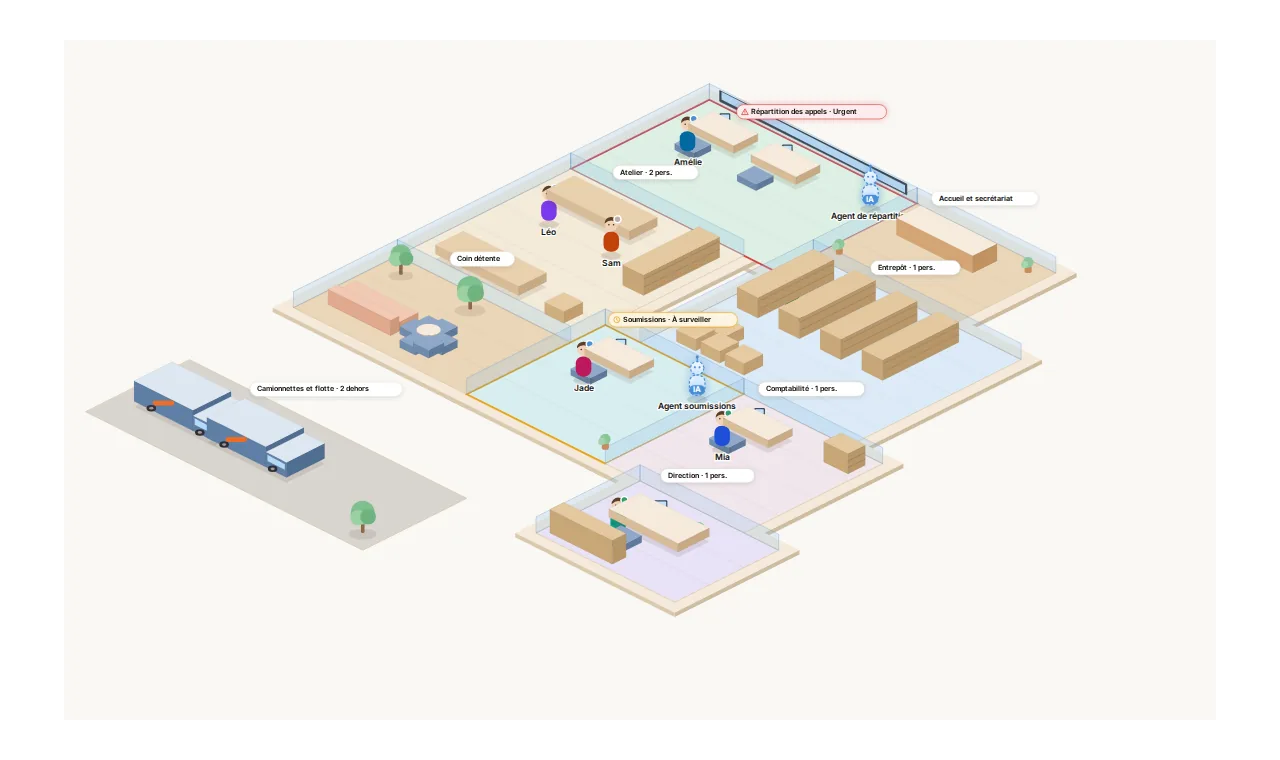
Your whole business, on one screen.
Each department is a room. Pilotiko prepares the work; you approve with one click.
- Call answered
- Appointment confirmed
- Email reply ready
- Invoice prepared